

Before you begin
Generate a VISO TRUST API token from an Admin or Program Manager account. Follow Generate an API token. The server uses the same token as the REST API. Keep it out of chat messages and shared configuration files.Connection settings
Replace
YOUR_API_TOKEN with your token and keep the Bearer prefix, including the space. Configure the connection in your AI client. You don’t need any setup in VISO TRUST’s Settings → Integrations.
Client authentication support varies. Select your client below for its setup method and any limitations.
Choose your client
- Claude Desktop
- Claude Code
- Codex CLI
- ChatGPT
- VS Code
Hosted connection
Claude’s Request headers option is in beta for a limited set of organizations. An organization administrator configures a shared credential. If that option is unavailable, use the local setup below.- Open Organization settings → Connectors, then Add → Custom. Select Web if asked.
- Name the connector VISO TRUST and enter
https://mcp.visotrust.com/mcp. - Select No sign-in, open Request headers, and add
Authorizationwith the valueBearer YOUR_API_TOKEN. Replace the placeholder with the API token for the VISO TRUST account your organization intends to share. - Save the connector. In Claude Desktop, open Customize → Connectors to connect, then enable it from the chat’s + → Connectors menu.
Local setup with Docker
If request headers are unavailable, Claude Desktop can run the VISO TRUST MCP server locally with Docker. This connects the local server to the VISO TRUST API.- Install and start Docker Desktop.
- In Claude Desktop’s application settings, open Developer → Edit Config.
- Add this entry to
claude_desktop_config.json. Merge it into any existingmcpServersobject.
- Replace
YOUR_API_TOKEN, save, then fully quit and reopen Claude Desktop. - Enable viso-trust in the conversation’s connectors menu and try the request below.
docker, use its full executable path. Docker must stay running.See the VISO server’s Docker configuration and Claude Desktop configuration guide.
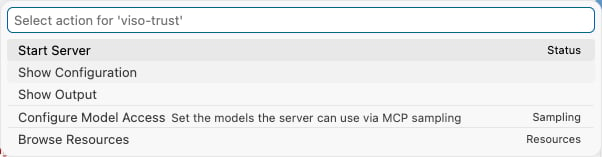
Available tools
The server’s tools cover these areas:
The server does not include tools for risk advisories. To retrieve advisories programmatically, call the REST API directly:
- Get all risk advisories for a vendor by relationship ID
- Get all risk advisories for a vendor by vendor ID
Try your first request
Ask your assistant:Use VISO TRUST to list my third-party relationships and their assessment status.The assistant should call
get_all_relationships and summarize the returned data. A successful tool call confirms access to your VISO TRUST data; the tool list alone does not verify your token’s permissions. An empty list can mean your organization has no relationships yet.
Then try a more specific request, using an ID from the result:
- “Use VISO TRUST to show the details for relationship ID 123.”
- “Use VISO TRUST to list the assessment history for relationship ID 123.”
123 with your actual relationship ID. Include the vendor name or relationship ID when asking follow-up questions.
The server also exposes tools that change data, such as creating relationships or starting assessments. Review the requested action and its inputs before approving those tool calls in your client.
Troubleshooting
If you still need help, contact VISO TRUST support with the client name and error message. Do not include your API token.